
Basic Usage
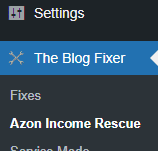
To get started, click “Azon Income Rescue” from The Blog Fixer menu in your dashboard’s sidebar.
Each product that appears in the tool is one that came back as not available. They will be sorted so that products that exist in the most posts will be at the top.
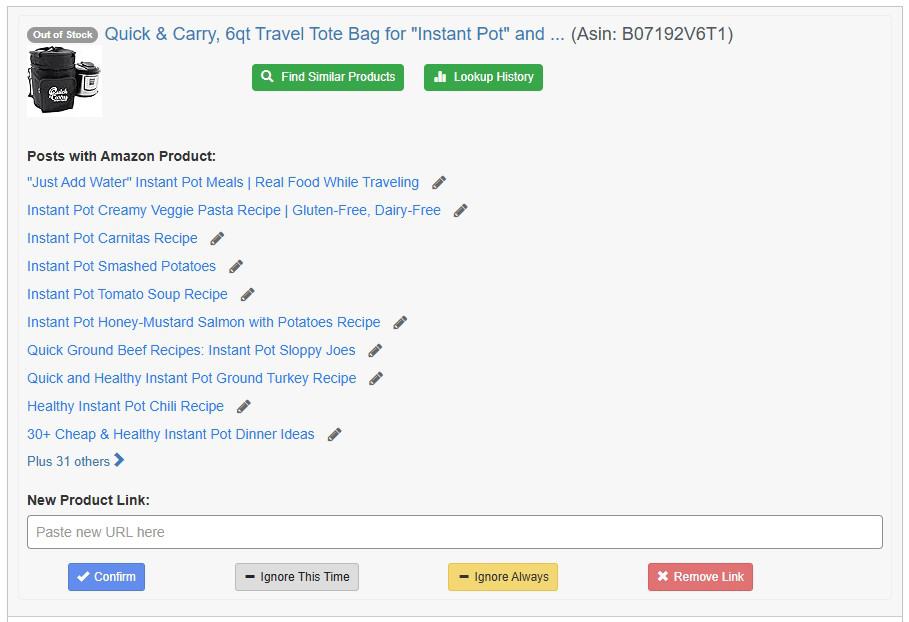
There are several tools available to help you decide if you want to update the link, remove the link, or keep the link.
- Click on the linked name of the product at the top of the cell to open the link to Amazon in a new tab. Amazon’s API is not always 100% accurate, so you will find instances of false positives where the item is actually present and in stock. In that case, this product can be ignored (see below).

 The text to the top left of the product’s name will tell you if the product is simply out of stock (and thus could become back in stock at a later date) or a 404 page (meaning the product is no longer on Amazon’s site).
 The Lookup History button will open the product in the site CamelCamelCamel and display the price history of a product, with it being unavailable represented by a dotted line. A product that comes back into stock quickly may be worth ignoring, while one that has been unavailable for years should be replaced.

 The text to the top left of the product’s name will tell you if the product is simply out of stock (and thus could become back in stock at a later date) or a 404 page (meaning the product is no longer on Amazon’s site).
 The Lookup History button will open the product in the site CamelCamelCamel and display the price history of a product, with it being unavailable represented by a dotted line. A product that comes back into stock quickly may be worth ignoring, while one that has been unavailable for years should be replaced.
Possible Actions
-
- If you want to change the product, find a new affiliated link from Amazon and paste it into the New Product Link box and click the Confirm button. (Only products that have been Confirmed will be changed). The product will be removed from the table, but no changes are made yet and you can go back and change your mind.

- If you don’t want to change the product, click one of the Ignore buttons.
- Ignore This Time – will only ignore the product until the fix updates after you apply the fixes to your site. Use this button if you want to see if the product comes back in stock and may decide to change it later.

- Ignore Always – will ignore the product every time you run a scan of your Amazon links, until it is unignored. Use this button if you never plan on changing the product link out and don’t want to see it in the future. This can be undone later (See below under Other Features).

- Ignore This Time – will only ignore the product until the fix updates after you apply the fixes to your site. Use this button if you want to see if the product comes back in stock and may decide to change it later.
- If you just want to remove the link, click the Remove Link button. The linked text will remain in your post, but the link itself will be removed. The product will be removed from the table, but no changes are made yet and you can go back and change your mind.

Once you are done confirming all products you care to, click the Fix My Blog button near the top.

If you prefer to work in batches, you may click Fix My Blog before you’re done confirming all of the products. You may return to the tool after the fix process has completed and your Amazon links will be scanned again. Note that table regeneration can take some time to complete.
- If you want to change the product, find a new affiliated link from Amazon and paste it into the New Product Link box and click the Confirm button. (Only products that have been Confirmed will be changed). The product will be removed from the table, but no changes are made yet and you can go back and change your mind.



Other Features
 The Find Similar Products button will run an Amazon search for the missing product. This can provide a quick way to find an alternative link.
- Click on any of the post names to open the post the product is found on in a new tab to get additional context.
- Click the Pencil icon next to the post name to open the post up in the editor.
- You can hover your mouse over the name of the product if it is too long to see entirely to see the whole thing.
- If you’d like to see the products you have confirmed, removed, or ignored, use the Products to show drop down at the top of the table. Changing this value allows you to Unconfirm, Un-remove or Unignore any Product if you made a mistake.
- You can close the page and return via the tool again at any time. Your progress will be saved.
 The Find Similar Products button will run an Amazon search for the missing product. This can provide a quick way to find an alternative link.
Dealing with False Positives
False positives occur when the Amazon API tells us a product is not available or has no offers, but following the link shows otherwise. They can occur if a product has a newer version and receives a different ASIN on Amazon.
The Azon Income Rescue tool displays the ASIN for each product. Often with a newer version, Amazon will automatically redirect the old ASIN URL to a URL with the new ASIN. In this case, you’ll notice that the ASIN displayed in your browser is not the same as the ASIN in the Azon Income Rescue tool. To eliminate this false positive in the future, you could copy, paste, and confirm this new ASIN’s URL into the tool and swap it out for the old ASIN.
Get Help
Please do not hesitate to reach out with any questions you have along the way.