Configuring the Button Behavior
Configuring the button is done by navigating to Settings -> Find Us More often in your WordPress dashboard sidebar.
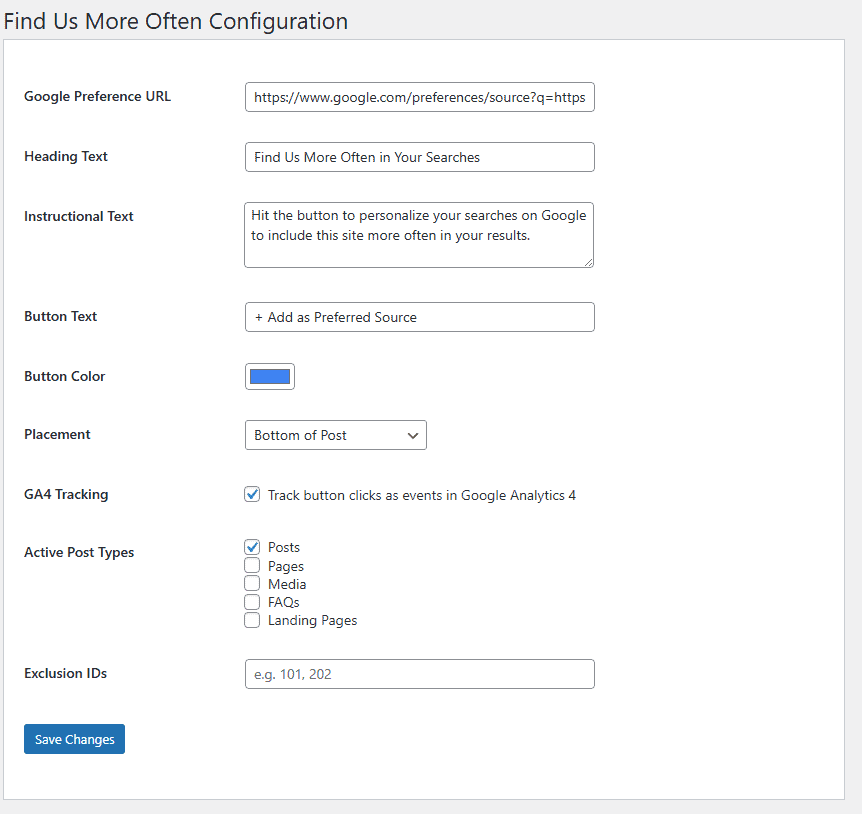
- Google Preference URL: The URL that is opened when the button is clicked. No need to change this unless the URL of your site changes.
- Heading Text: The heading text displayed above the button. Make blank to suppress the heading.
- Instructional Text: Smaller text below the heading and above the button, describing what clicking will do. Make blank to suppress.
- Button Text: The text that appears on the button.
- Button Color: The background color of the button. Click the color to select a different color.
- Placement: Select from
Bottom of PostorAfter Specific Paragraph. - Paragraph Number: (Only displays when After Specific Paragraph is selected). Numeric paragraph number, after which the button will be placed. For example, entering 2 will cause the button to be placed after the second paragraph in each post.
- GA4 Tracking: Selecting sends button clicks as events to Google Analytics, allowing you to see how often the button has been clicked and on which posts. See the “Tracking Clicks in Google Analytic” section below for more information.
- Active Post Types: All default and custom post types found on your site. Only selected post types will have the button inserted into them.
- Exclusion IDs: Comma separated list of post IDs to not insert the button into.
Tracking Clicks in Google Analytics
Once we have the “Find Us More Often” plugin active on your site, it will automatically start sending data to your Google Analytics 4 (GA4) property when the GA4 Tracking option above is selected. To see this data in your reports, you just need to “register” the event.
Step 1: Register the Custom Event
-
Log in to your GA4 property.
-
Click the Admin (gear icon) in the bottom left.
-
Under Data Display, click Custom Definitions.
-
Click the blue Create custom dimensions button and fill it out exactly like this:
-
Dimension name:
Follow Button Label -
Scope:
Event -
Description: Tracks clicks on the Google Follow button.
-
Event parameter:
event_label
-
-
Click Save. Note: If you see an error saying the parameter is already in use, it means you (or a plugin) already registered
event_label. You’re all set! Just look for the existing dimension name (like “Link Label”) in your reports to see your button data.
Step 2: Mark as a Conversion (Highly Recommended)
If you want to see these follows alongside your other key metrics:
-
Go to Admin > Data Display > Events.
-
Find the event named
find_us_more_often_click. -
Toggle the switch under Mark as conversion.
Step 3: How to View Your Results
After 24 hours, you can see which specific blog posts are driving the most follows by going to Reports > Engagement > Events and clicking on find_us_more_often_click.